
A tour of the window
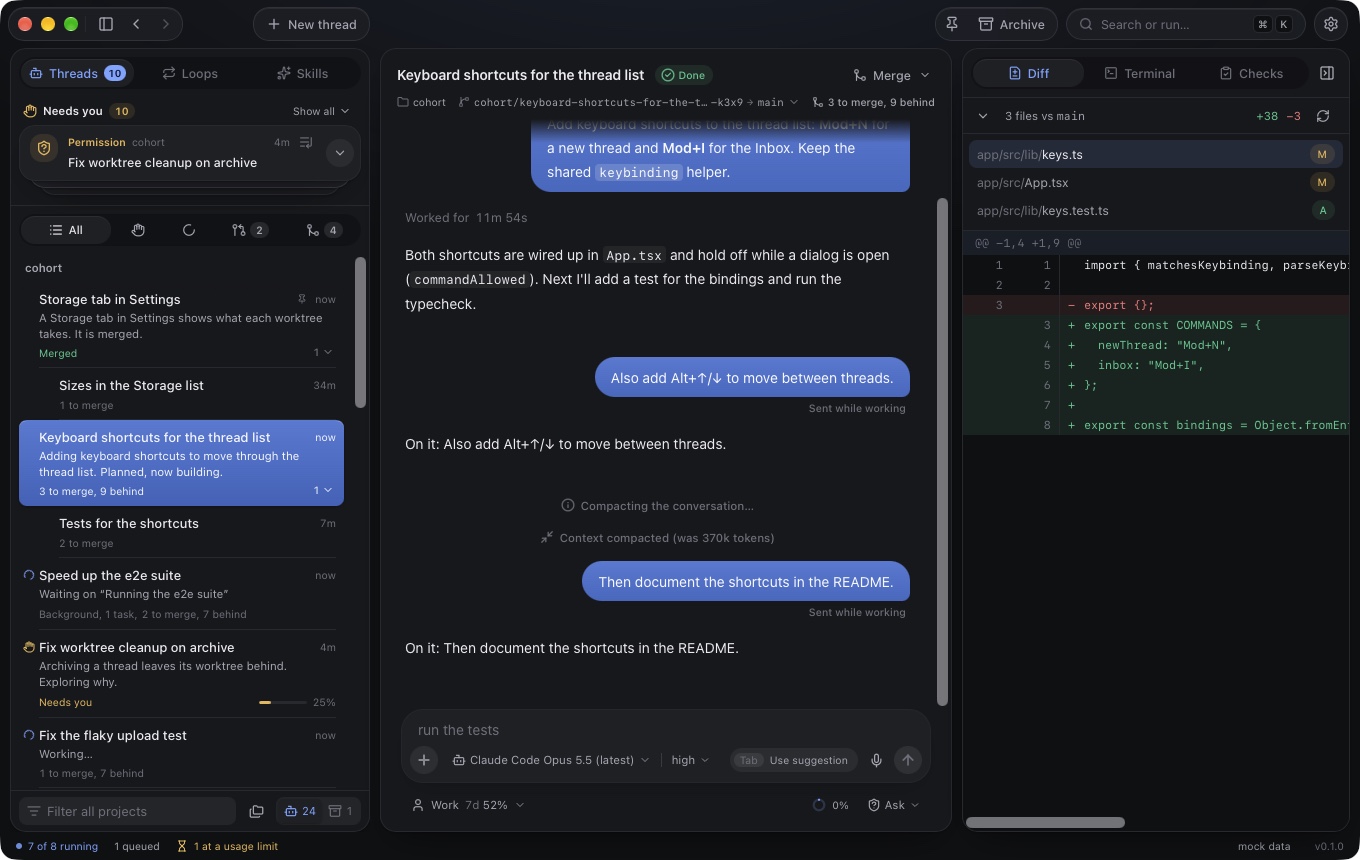
The Cohort window has five parts: the toolbar, the sidebar, the thread, the side panel and the status bar. Its icon also sits in the menu bar.
Keys in these docs are macOS’s. On Windows and Linux, press Ctrl where they say ⌘, and Alt where they say ⌥. See Keyboard shortcuts.
The toolbar
Section titled “The toolbar”- On the left: Toggle Sidebar (⌘B), Back and Forward (⌘[ and ⌘]), and New thread (⌘N).
- Over the thread: what you can do to it: Pin and Archive (an archived one: Unarchive and Delete). A thread working in your checkout also gets Move to a worktree.
- On the right: Search or run… (⌘K) finds any thread in any project and runs any command; Settings (⌘,).
The sidebar
Section titled “The sidebar”Three views, across the top: Threads (⌘1), Loops (⌘2) and Skills (⌘3). The Threads view has:
- Needs you, on top: a stack of cards, one per thread waiting for you (a permission, a question, a failure, work to merge). Answer from the card. See Needs you.
- The Show bar: All, Needs you, Running, To merge and Merged.
- The thread list, grouped by project. A child thread sits under the thread that started it. Each row says what the thread is doing and how its branch stands (“3 to merge, 9 behind”), with one mark at its left: a spinner while it works, an amber hand when it needs you, red when it failed, a dot when it finished and you haven’t looked yet.
- At the foot: a filter, the project filter (which projects the list shows) and Active and Archived.
Loops run a prompt on a schedule; Skills are the instructions your agents can load.
The thread
Section titled “The thread”- The header: the title and status, the project, the branch and where it merges into, how the branch stands, and Merge. See Merging.
- The transcript: your messages on the right, the agent’s answers on the left. A finished turn folds its steps into one line, “Worked for 11m 54s”; click it to see every command and edit.
- The composer, at the bottom: what you type next, with the agent, model and effort in the box, and the login, context meter and permissions under it. See The composer.
The side panel
Section titled “The side panel”Diff (⇧⌘D), Terminal (⇧⌘T) and Checks (⇧⌘K), as tabs; ⌘J shows or hides it. In a narrow window it floats over the transcript instead. See Diff, terminal and checks.
The menu bar icon
Section titled “The menu bar icon”While Cohort runs, its icon sits in the menu bar (the system tray on Windows and Linux). It gets a dot when something needs you; click it to open those threads. See In the menu bar.
The status bar
Section titled “The status bar”How many threads are running and queued, how many need you, how many wait for a usage limit to reset (click to see which), and Cohort’s version (click for About and updates).
New thread
Section titled “New thread”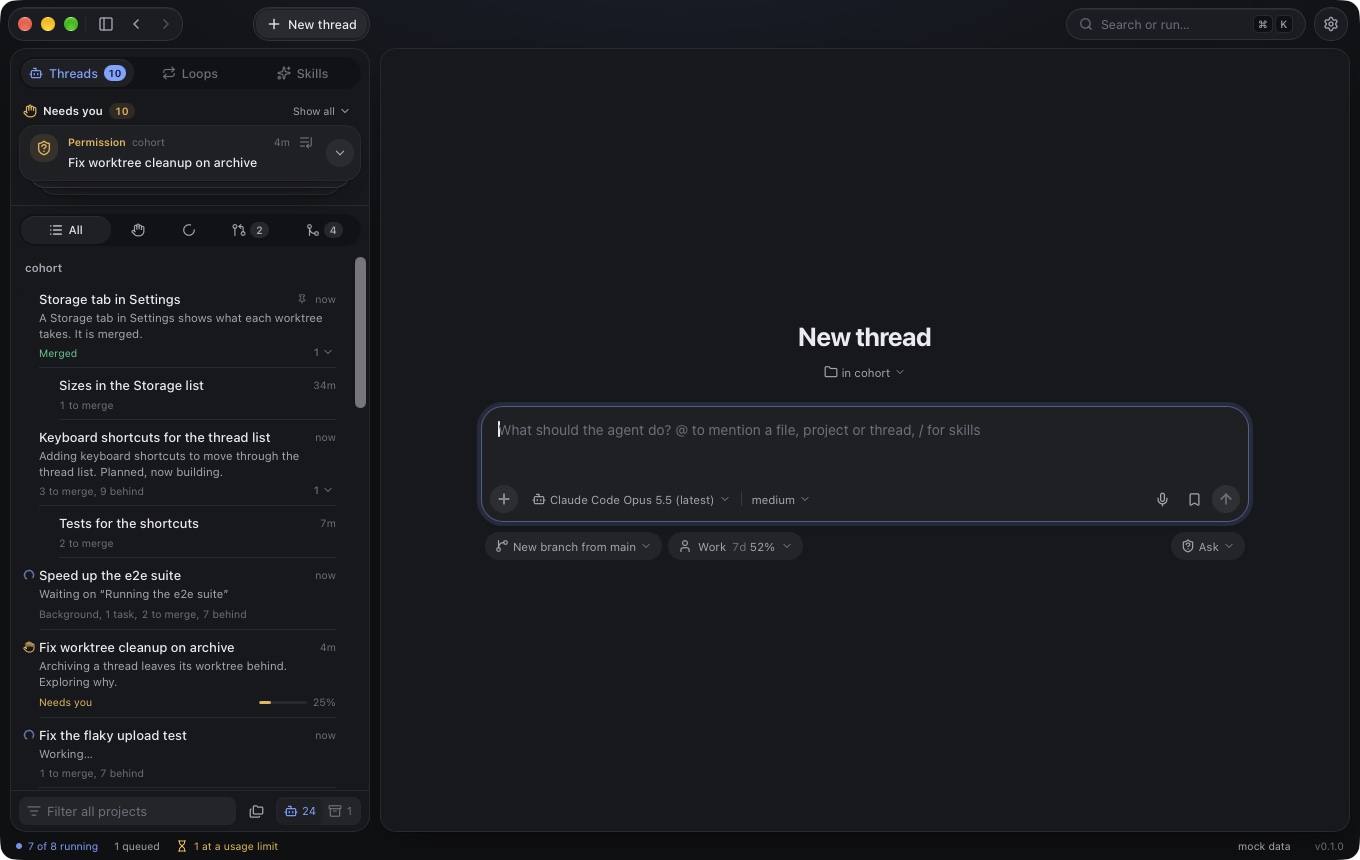
⌘N turns the main panel into one message box for the current project: type the task and press ↵. Under the box: Branch (where the thread works), the login, and the permissions. See Start a thread.
 © 2026 Bussin Bytes Ltdcohort.bussinbytes.io